
Set up AI replies
Teach AI your website, show us it's yours, check what AI learnt and switch it on.
AI Assistant7 steps·5 min read
- 1
Open AI Assistant
Click AI Assistant in the menu. The first time, Overview shows Teach AI your business: three steps, about two minutes. AI writes to no customer until you switch it on in step 3.
app.swiftcampaigns.com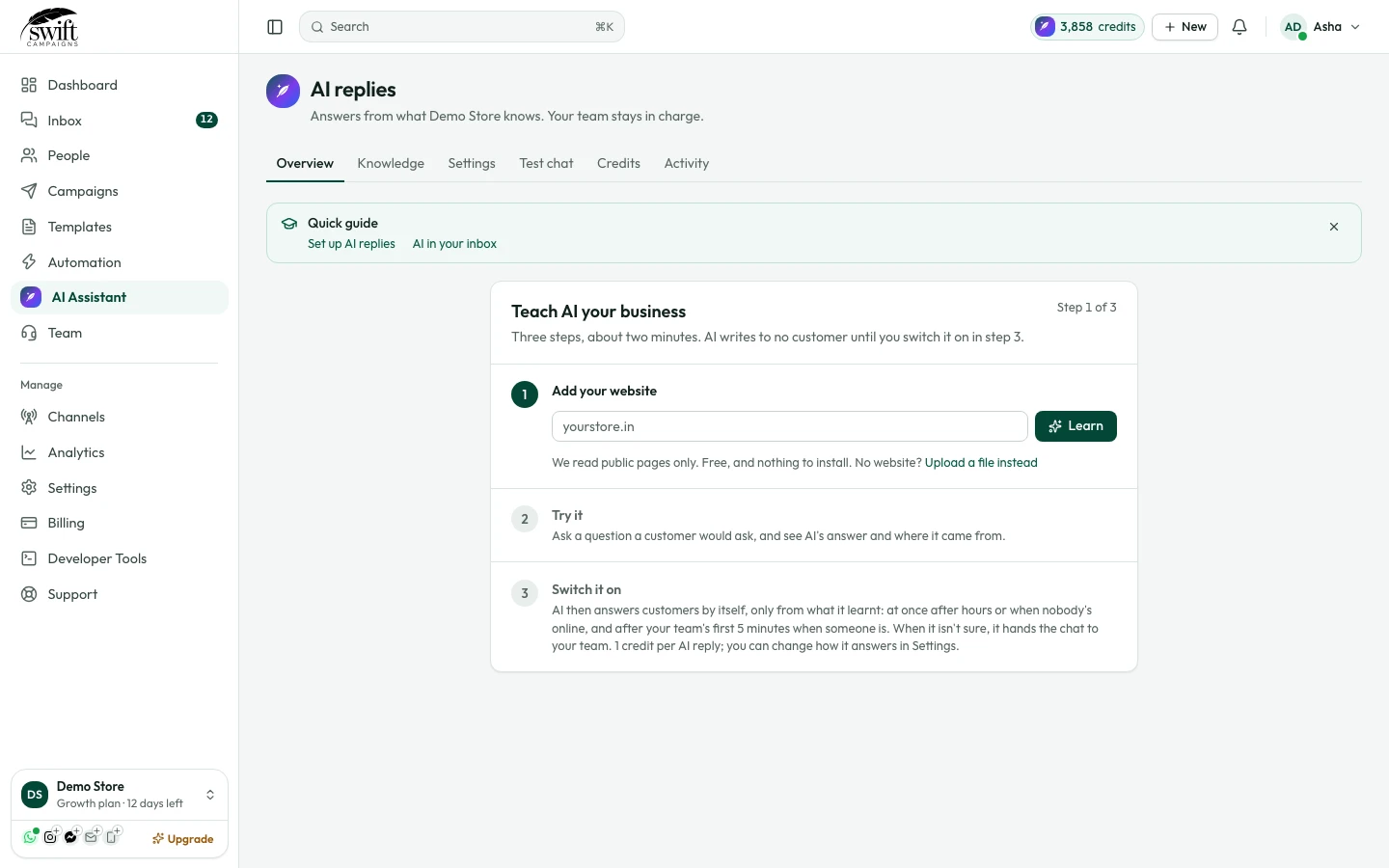
- 2
Add your website
Under Add your website, type your address, for example
yourstore.in, and click Learn. No website? Click Upload a file instead. Later you can add more from Knowledge › Add a website: click Check to count the pages, then Learn.app.swiftcampaigns.com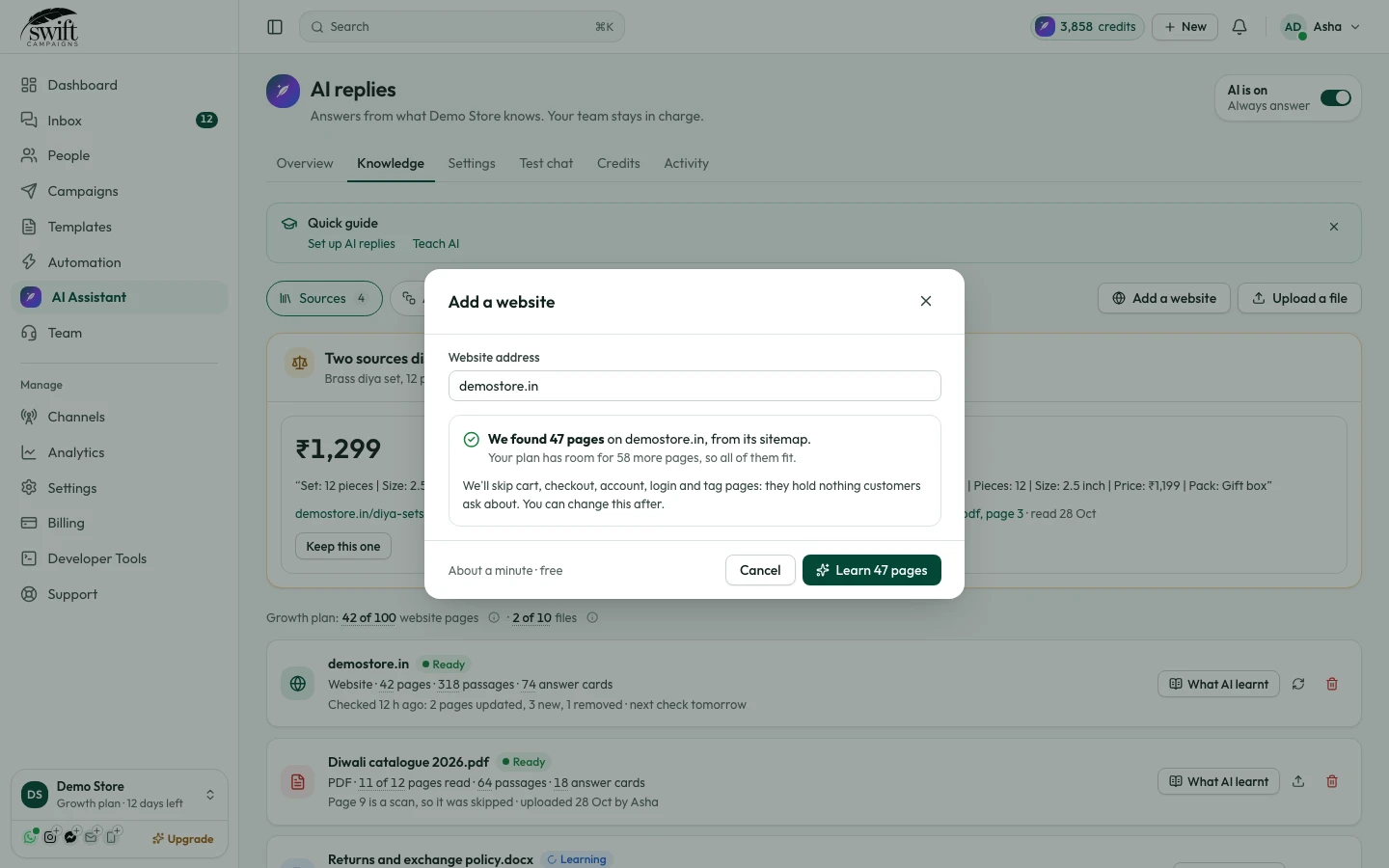
- 3
Show us the website is yours
Before AI reads a new website, a window asks you to show it's yours, so nobody can teach AI from a site that isn't theirs. Either way works. On Add a DNS record, copy the Name and Value into your domain's DNS as a TXT record; if we know where your domain is, a button takes you there, for example Open GoDaddy DNS. Or on Upload a file, click Download file and put the file in your website's main folder, next to your home page. Then click Check now, or Later: we check every minute for 7 days.
app.swiftcampaigns.com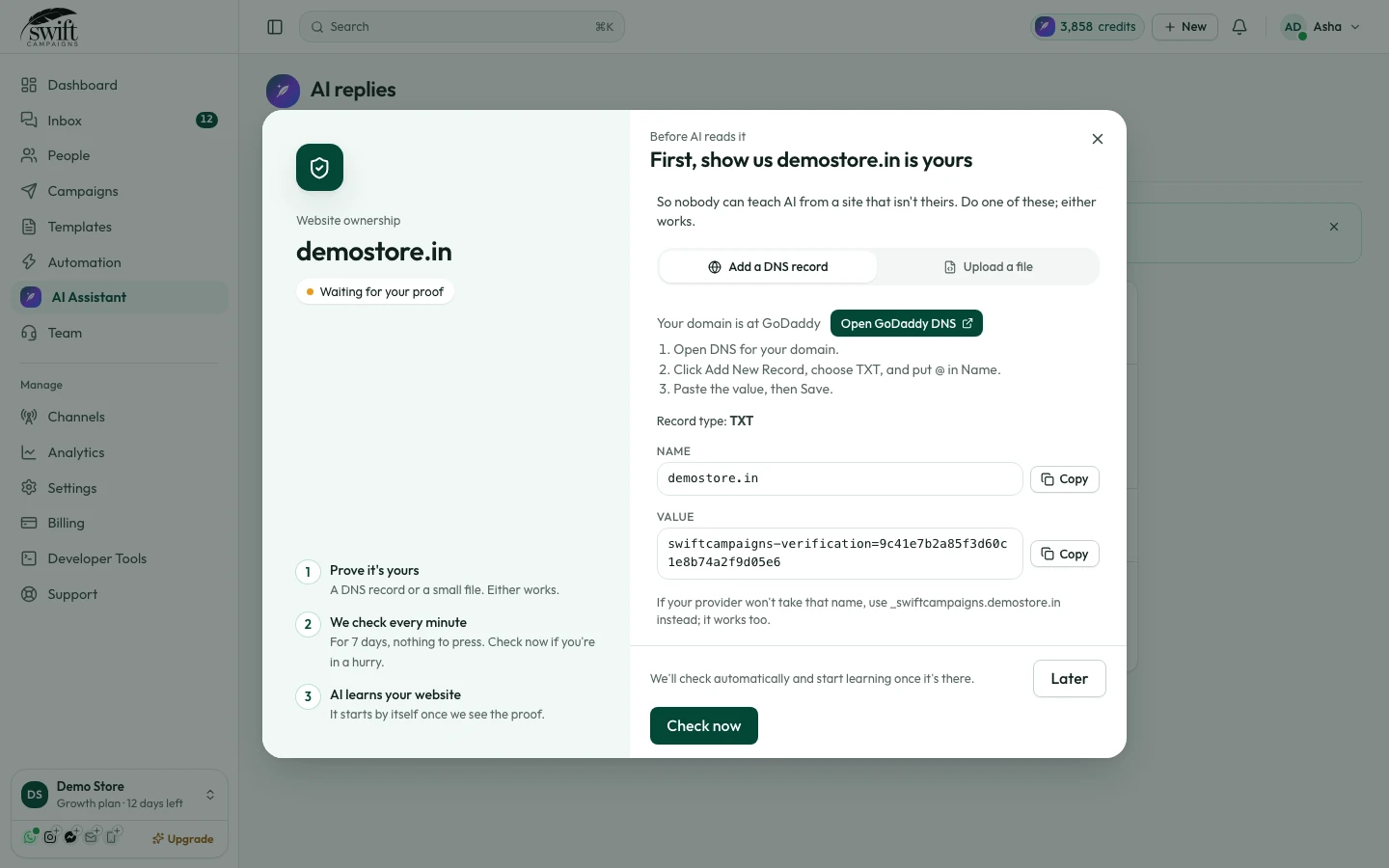
- 4
Learning starts by itself
Once we see your record or file, the window says your website is verified and AI starts reading it. You don't need to press anything. Overview shows how far it has got, for example 18 of 47 pages. You can leave the page: we'll tell you when it's done.
app.swiftcampaigns.com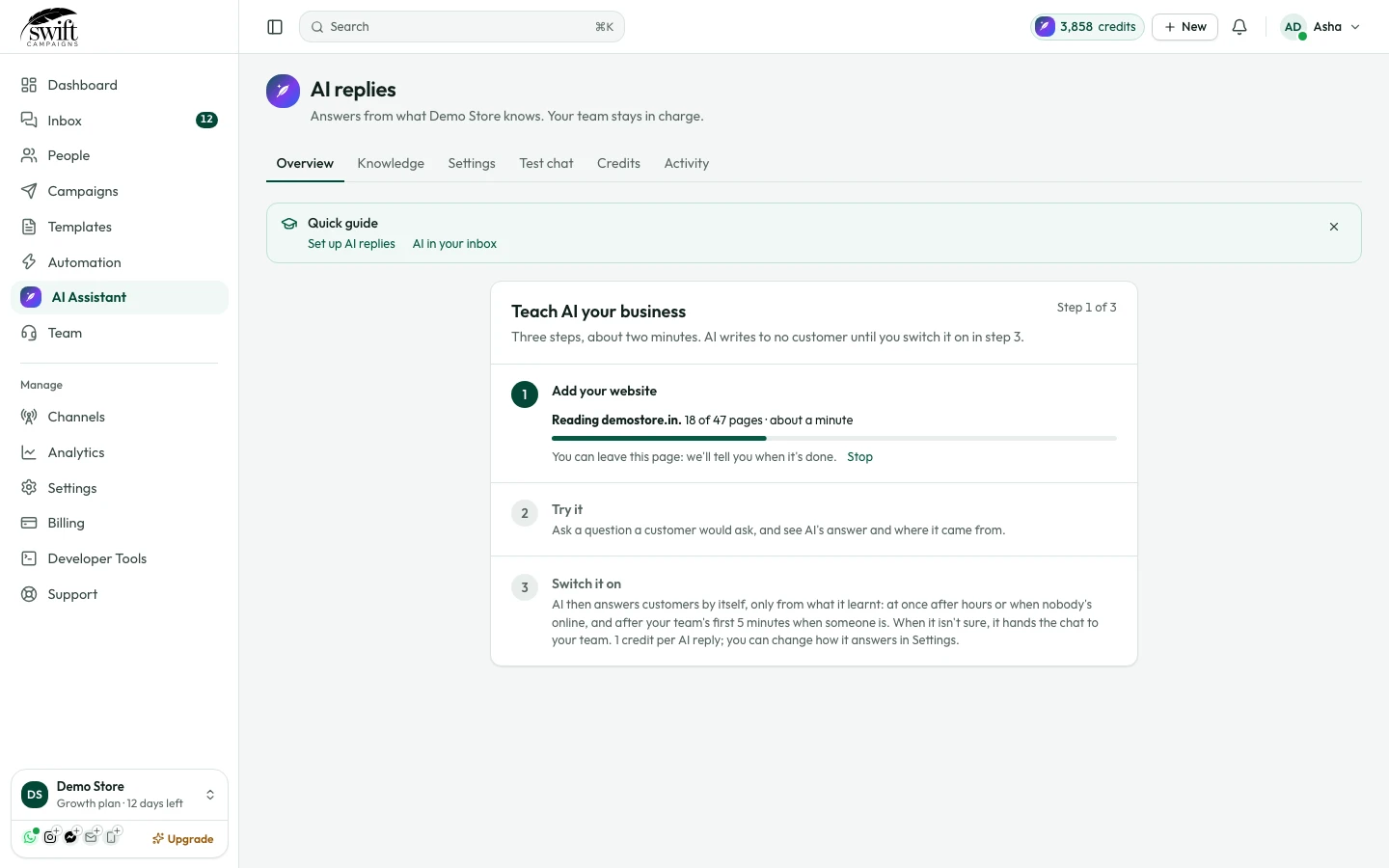
- 5
See what AI learnt
Go to Knowledge › Sources and click What AI learnt on your website. You see the pages it read, the passages it answers from and the answer cards it drafted. Click a page to read its passages one by one; click Exclude on any passage AI shouldn't use. We check your website again every day, or click Refresh now.
app.swiftcampaigns.com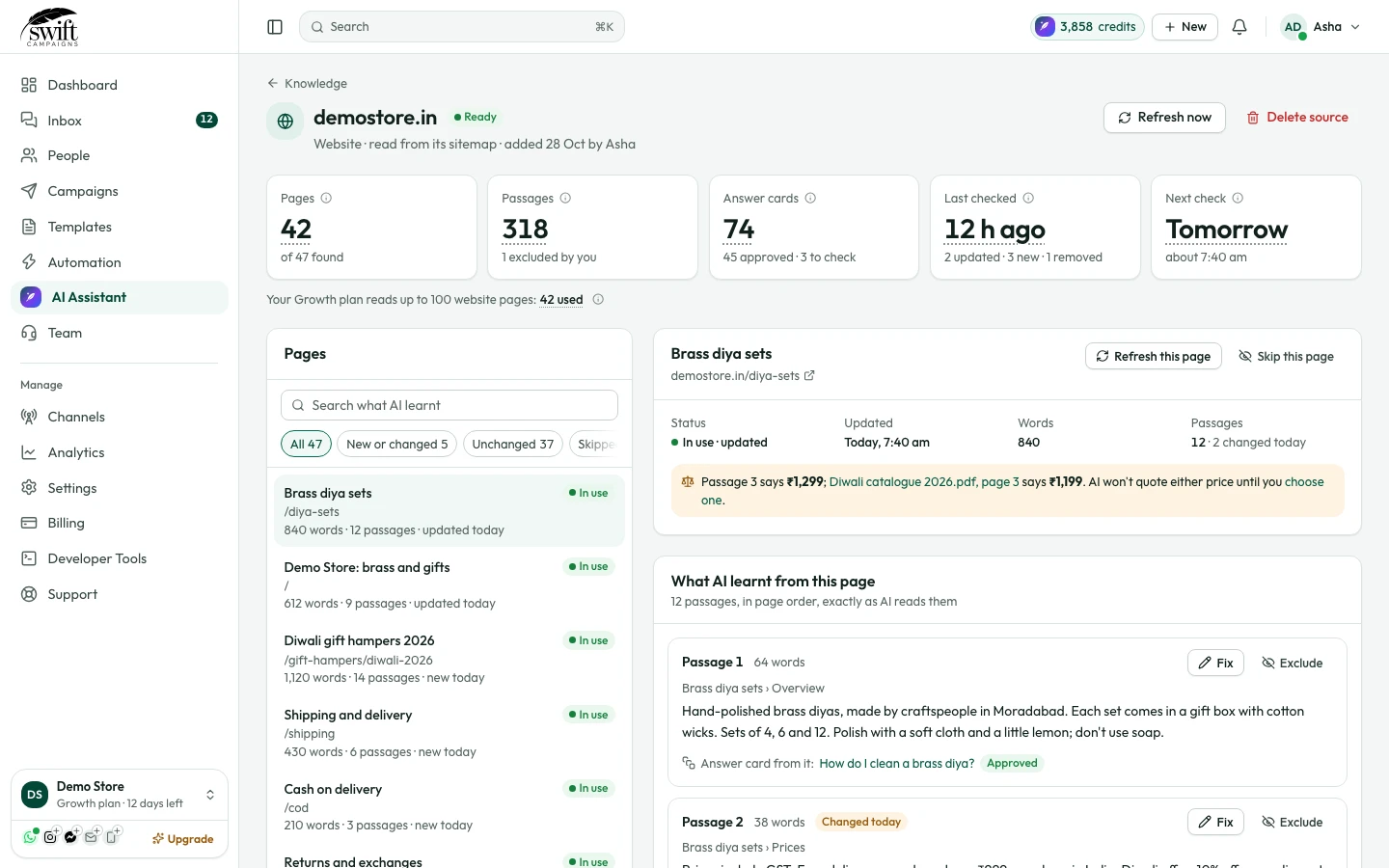
- 6
Tell AI about your business
Go to Settings › Assistant › About your business. We draft a few lines from your website; change them to say what you sell and how you work, in up to 1,000 characters. It gives AI context. Prices and facts still come only from your knowledge.
app.swiftcampaigns.com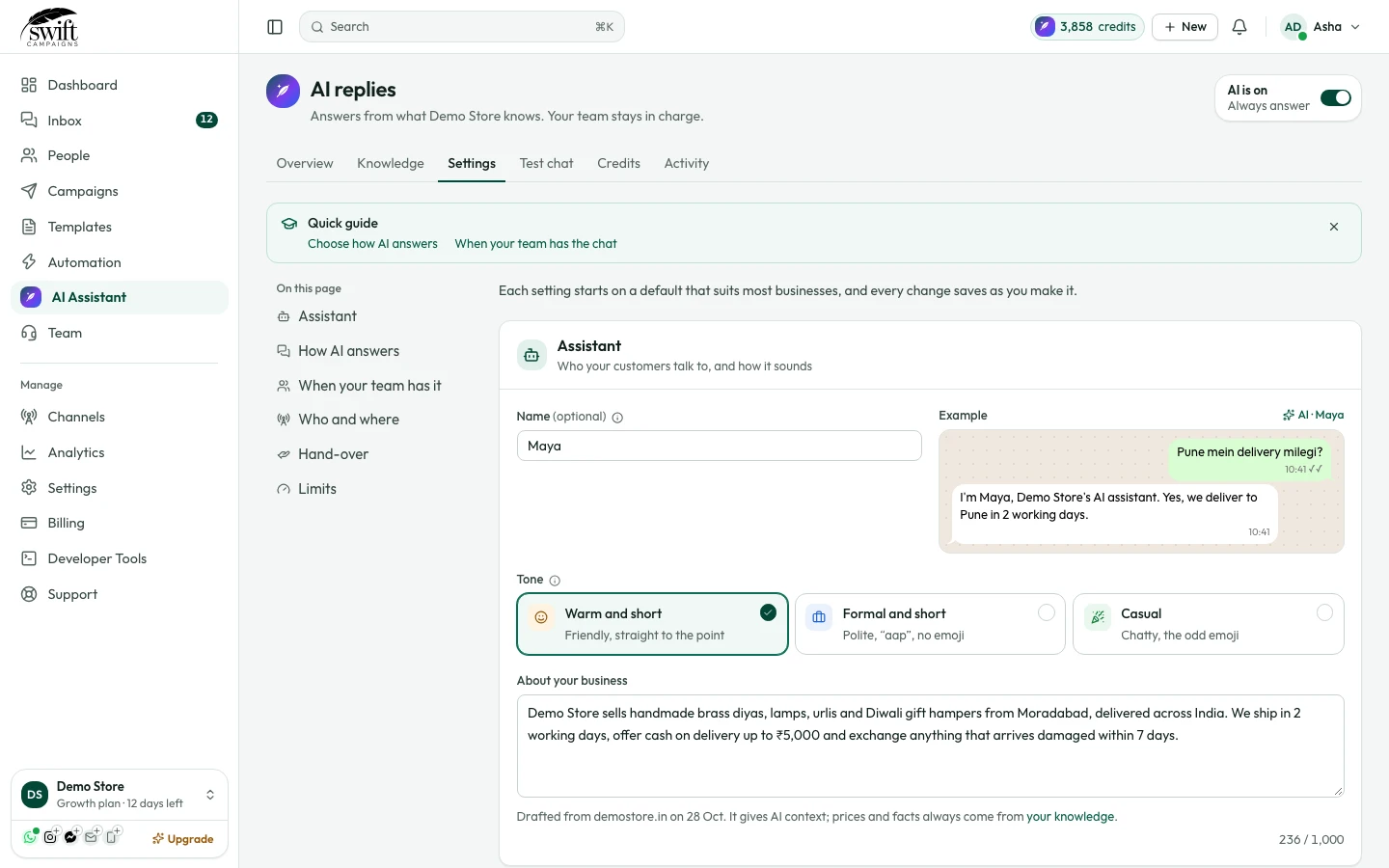
- 7
Switch AI on
Back on Overview, try one of the questions AI drafted from your website, then click Switch on AI. From then on, the switch at the top right of every AI Assistant page shows AI is on and how AI answers; use it to switch AI off or on.
app.swiftcampaigns.com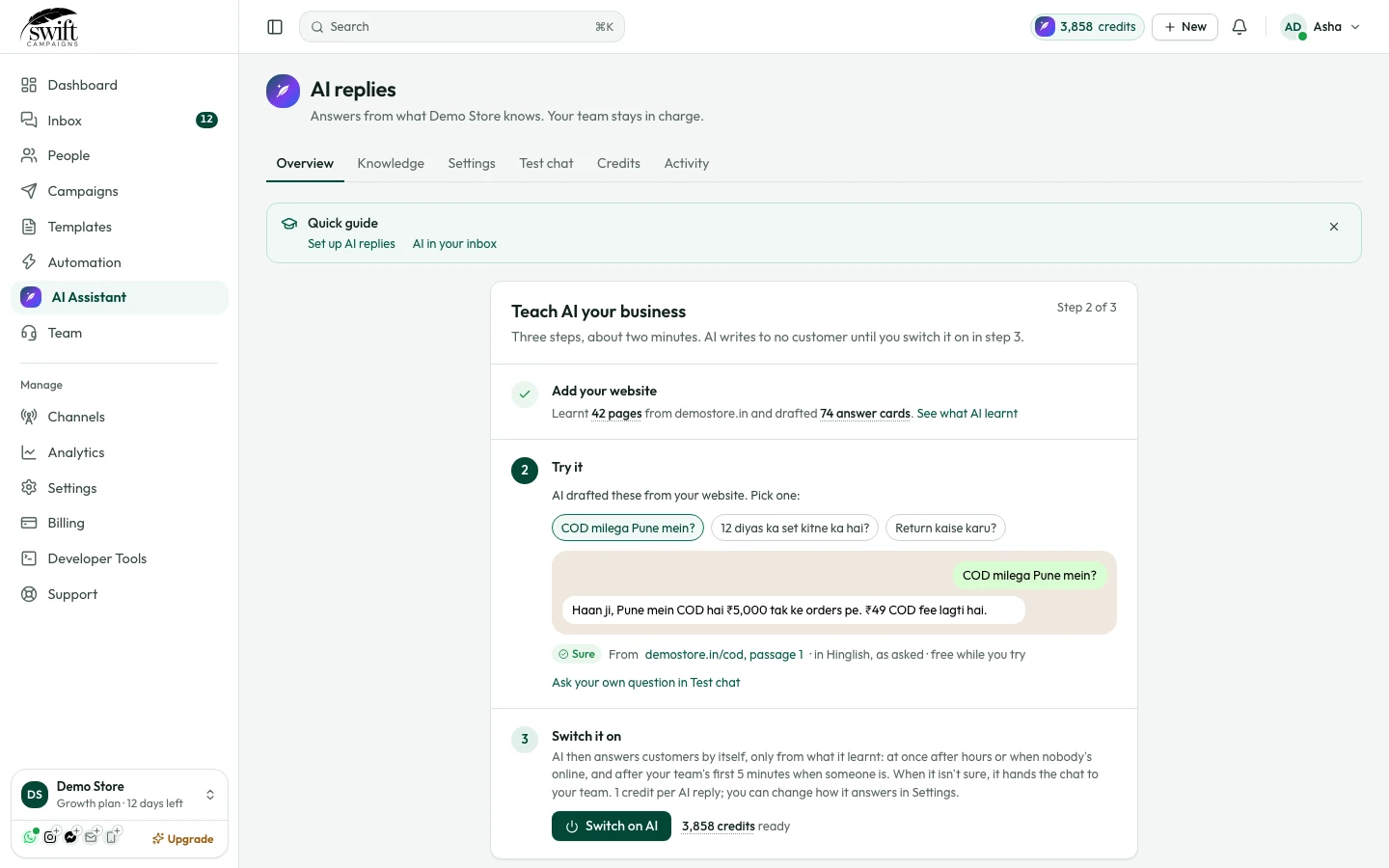
Good to know
- DNS changes can take a few minutes to show. You don't need to keep the window open: we keep checking and start learning once the record or file is there.
- AI only reads public pages, never anything behind a login. Cart, checkout, account and login pages are skipped.