AI in your inbox
Ask AI for a reply, take a chat over or hand it back, and read AI's hand-over summary.
AI Assistant5 steps·4 min read
- 1
Ask AI for a reply
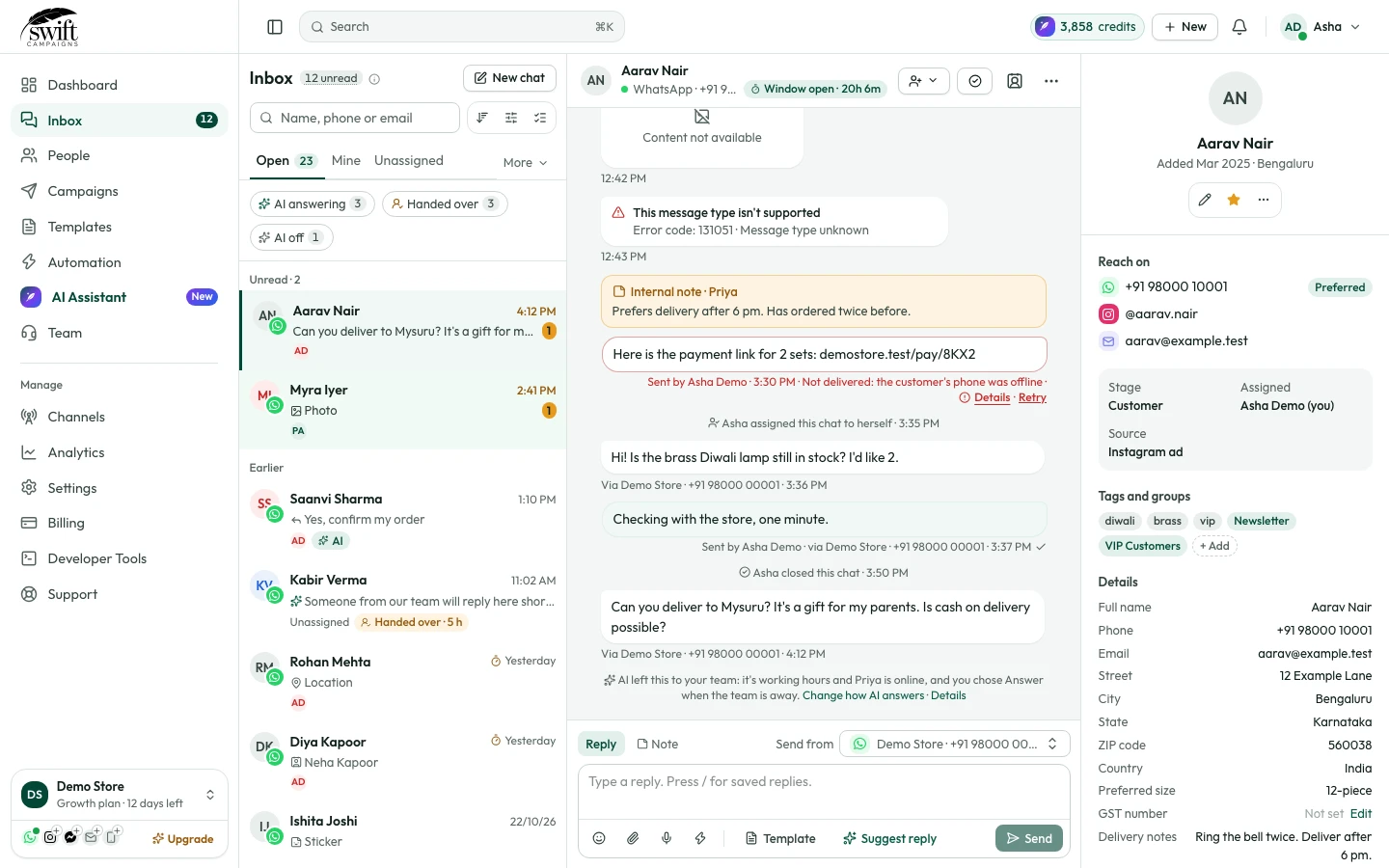
In any chat, click Suggest reply next to Send. AI writes a reply from your knowledge and shows where it came from. Click Use to put it in the box, change anything, then click Send. Try again writes another. Each suggestion uses 1 credit; asking again for the same message within 15 minutes is free.
app.swiftcampaigns.com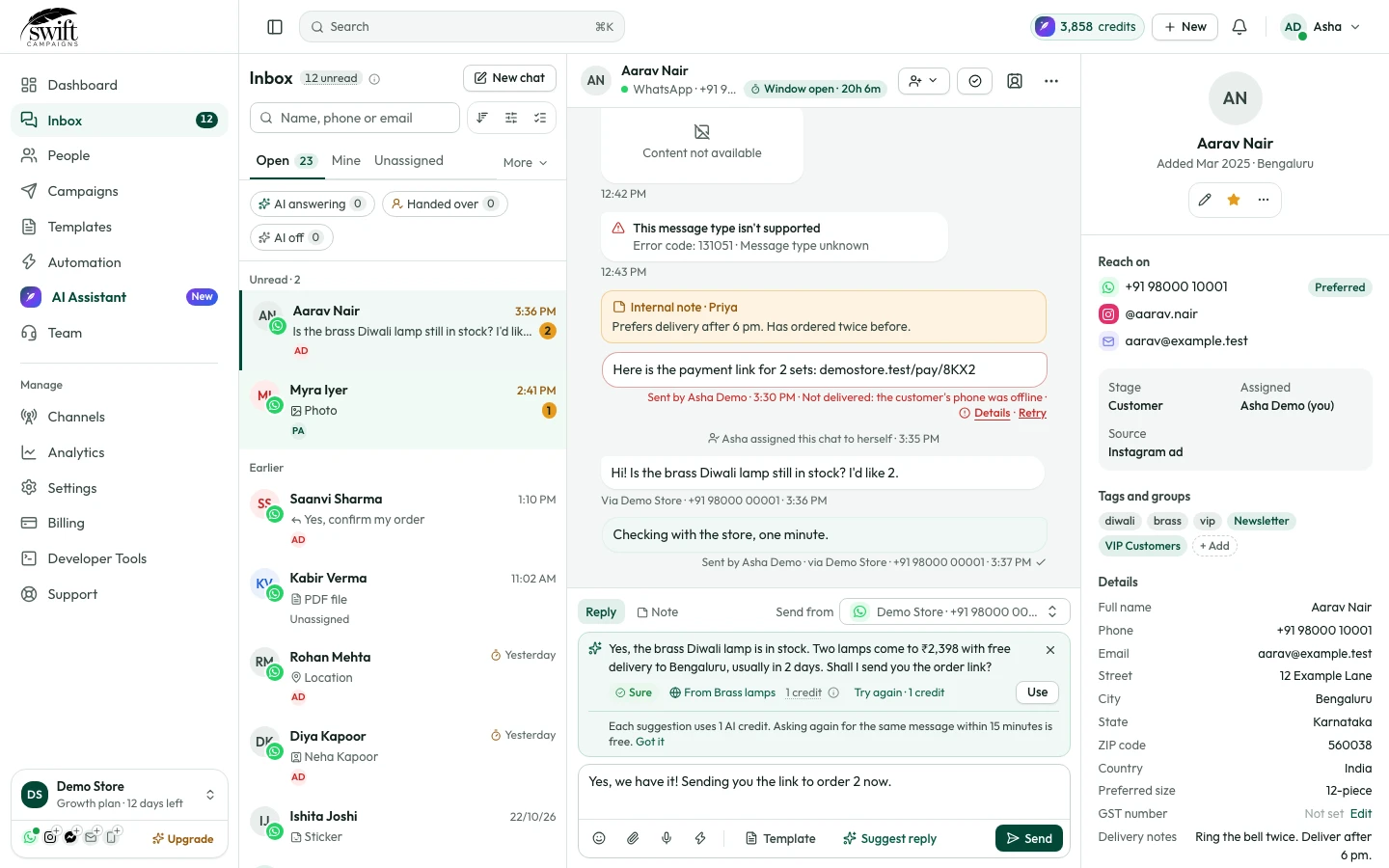
- 2
See when AI is answering
A chat AI is answering says so at the top: AI is answering this chat. It stops the moment someone on your team replies. Each AI message shows where it came from, with Details and Fix this answer. Use the AI answering, Handed over and AI off filters to find these chats.
app.swiftcampaigns.com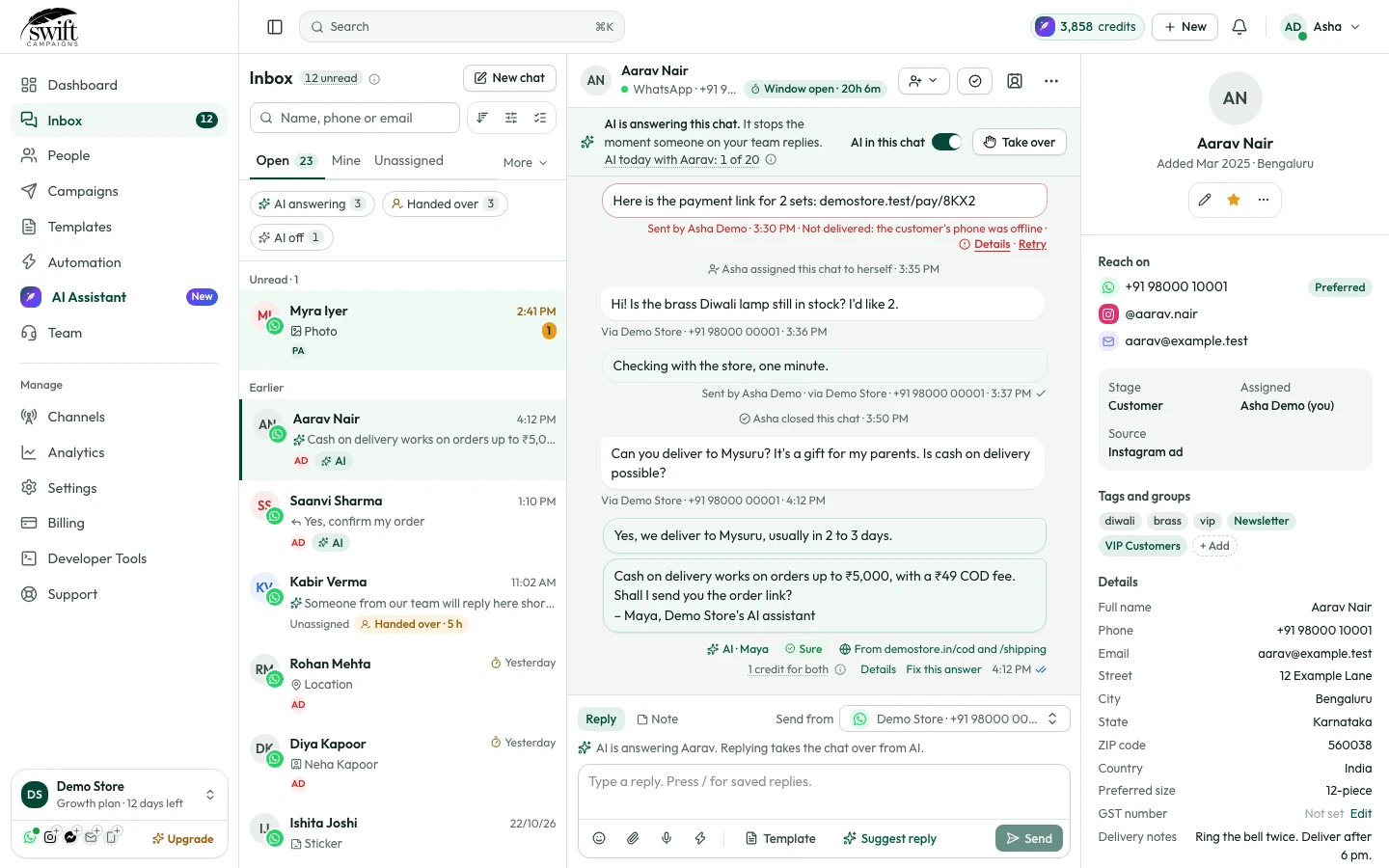
- 3
Take over, or hand back
Click Take over, or simply reply, and the chat is yours: AI stays out until you click Hand back to AI or close the chat. Switch off AI in this chat to keep AI out of it.
- 4
Read the hand-over summary
When AI hands a chat to your team, the customer gets a short message (free) and your team gets a card in the chat: AI handed this chat to you, with a Summary of why, what the customer wants, what's still open and the details AI collected, such as an order number. Reply as usual.
app.swiftcampaigns.com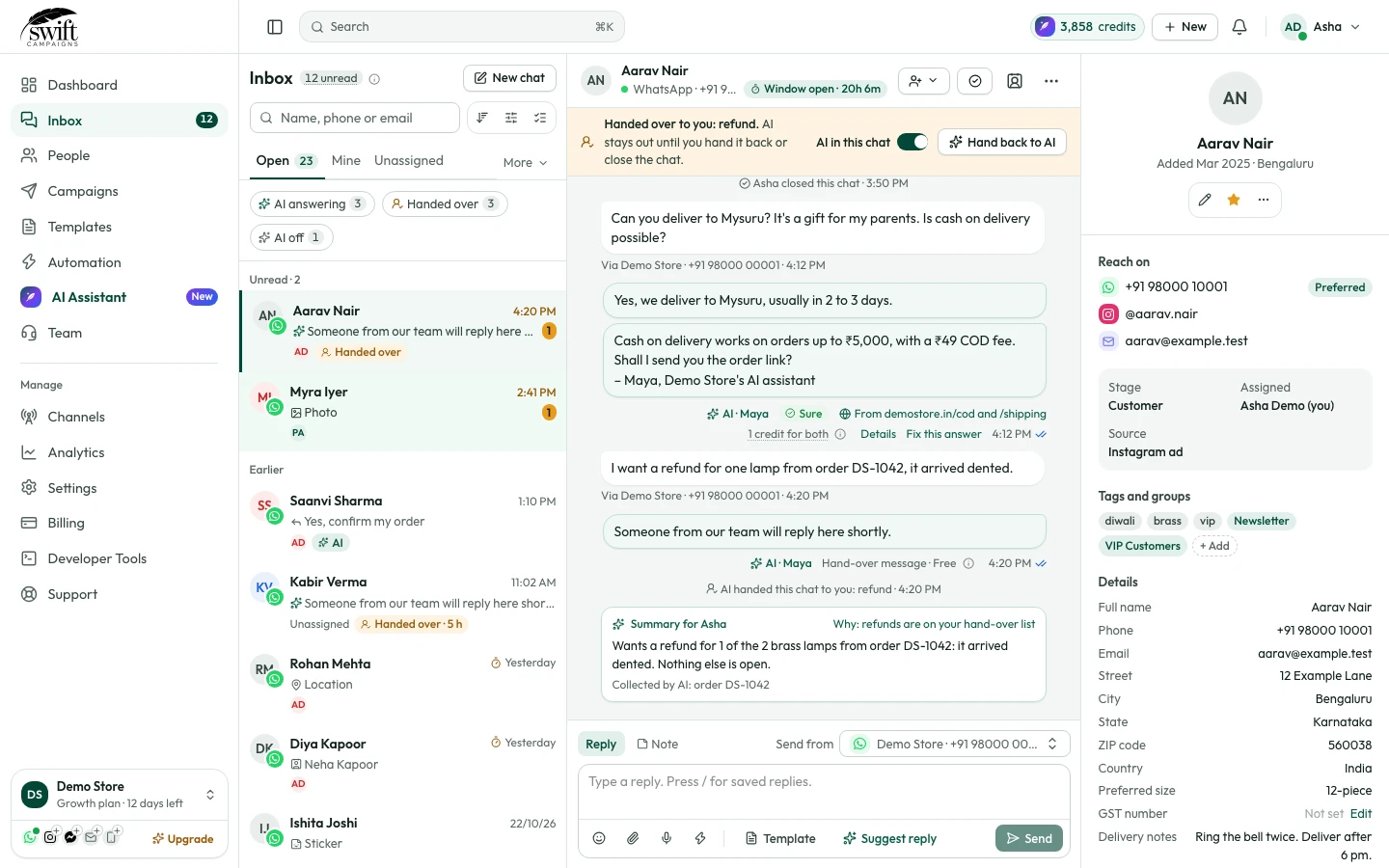
- 5
See why AI stayed quiet
When AI doesn't answer, a line in the chat says why, for example: "AI left this to your team: it's working hours and Priya is online, and you chose Answer when the team is away." Click Details for more, or Change how AI answers.
app.swiftcampaigns.com