
Choose how AI answers
Name your assistant, pick its tone, and choose when AI answers, who it answers and when it hands over.
AI Assistant6 steps·4 min read
- 1
Open AI Settings
Go to AI Assistant › Settings. Each setting starts on a default that suits most businesses, and every change saves as you make it. Use On this page to jump to a section.
app.swiftcampaigns.com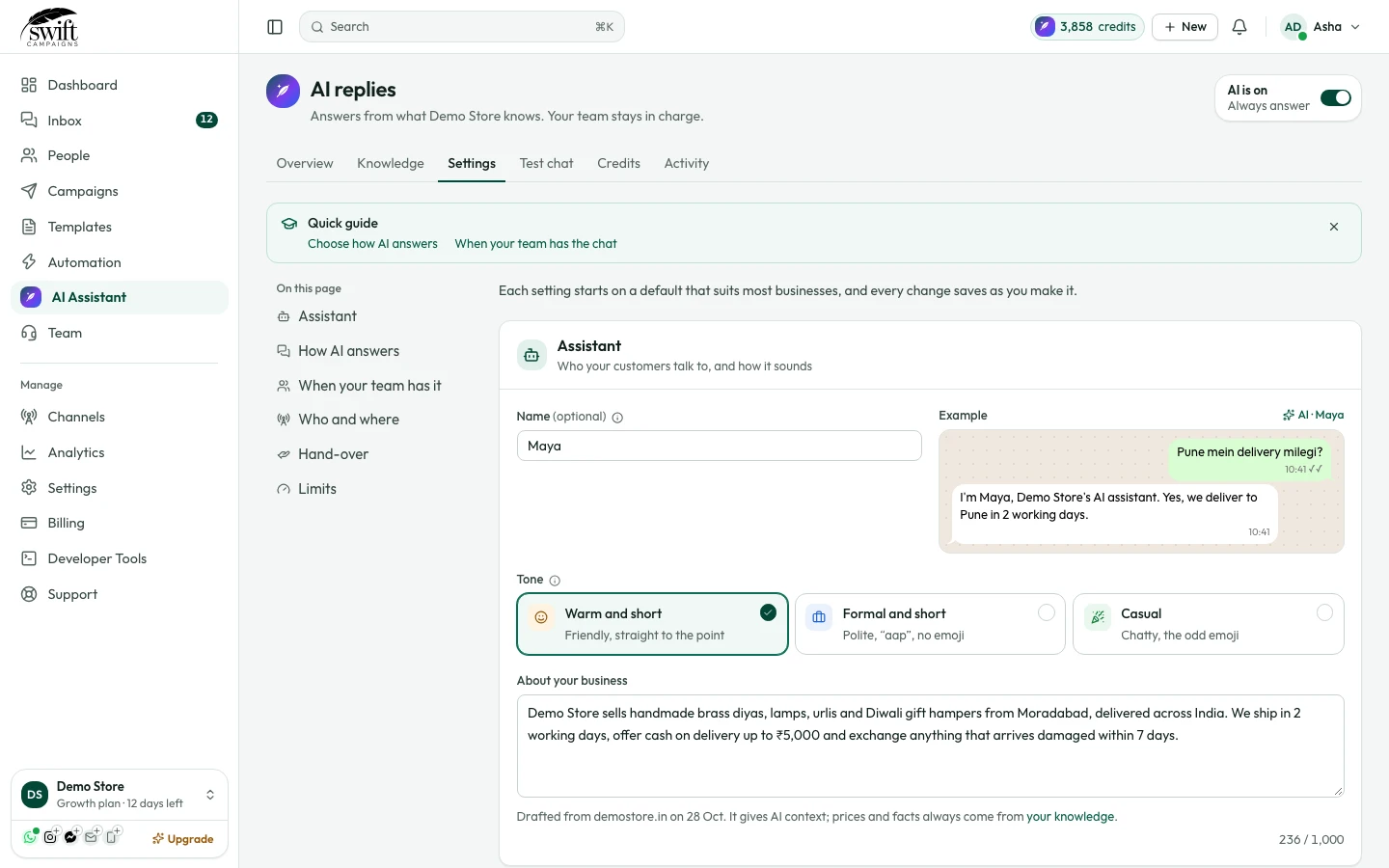
- 2
Name your assistant and pick a tone
Under Assistant, type a Name if you like; the Example beside it shows how AI introduces itself, for example "I'm Maya, Demo Store's AI assistant". Pick a Tone: Warm and short, Formal and short or Casual.
- 3
Choose how AI answers
Under How AI answers, pick one. Always answer: AI answers by itself, and when someone's online in working hours your team gets the first 5 minutes. Answer when the team is away: AI answers after hours, on holidays or when nobody's online, and suggests replies in hours. Suggest only: AI never messages customers by itself; your team clicks Suggest reply.
app.swiftcampaigns.com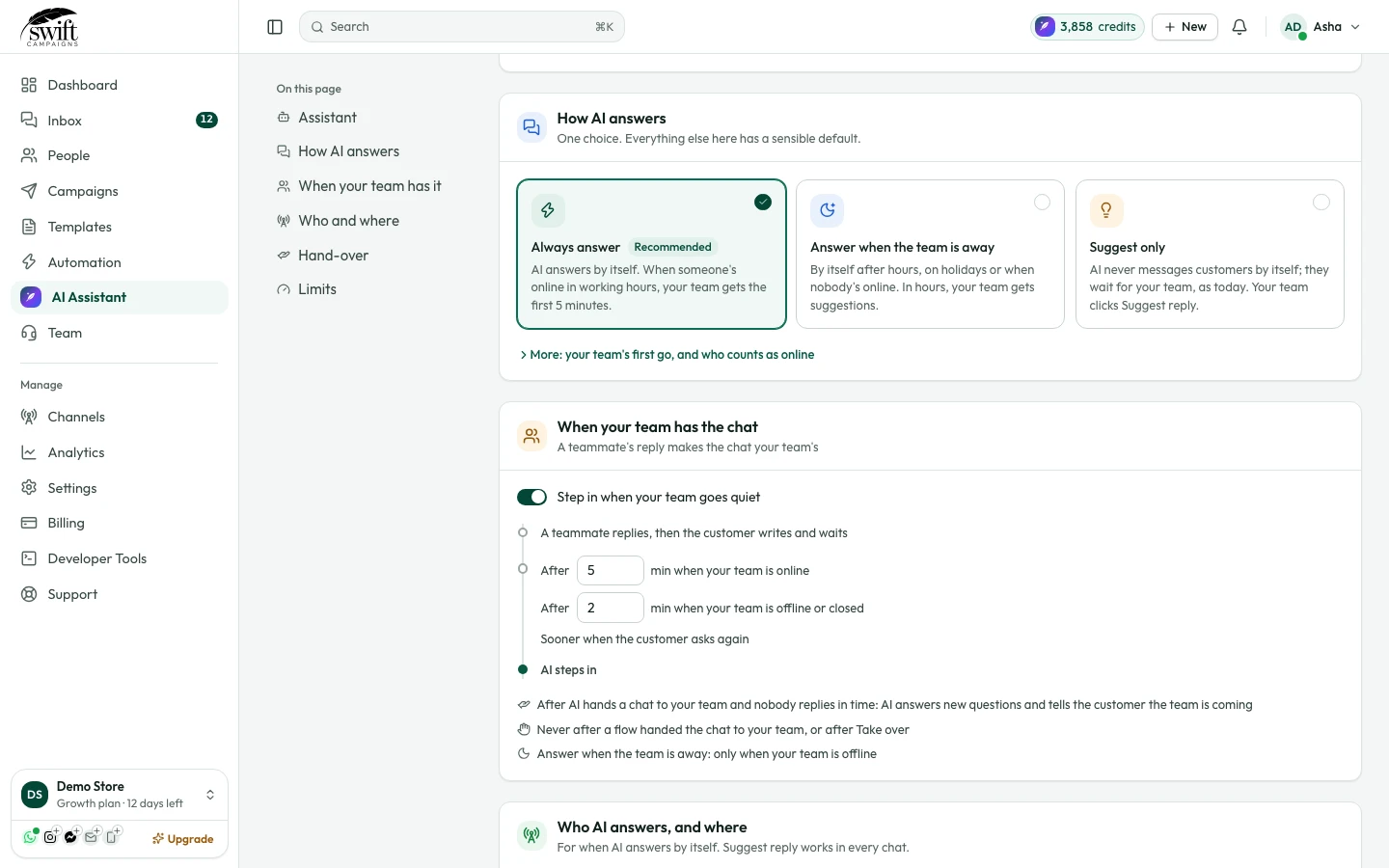
- 4
Choose who AI answers, and where
Under Who AI answers, keep Everyone or pick People in chosen stages, for example new leads only. Under Channels and lines, switch AI on or off for each number and account. WhatsApp Web numbers can't use AI.
app.swiftcampaigns.com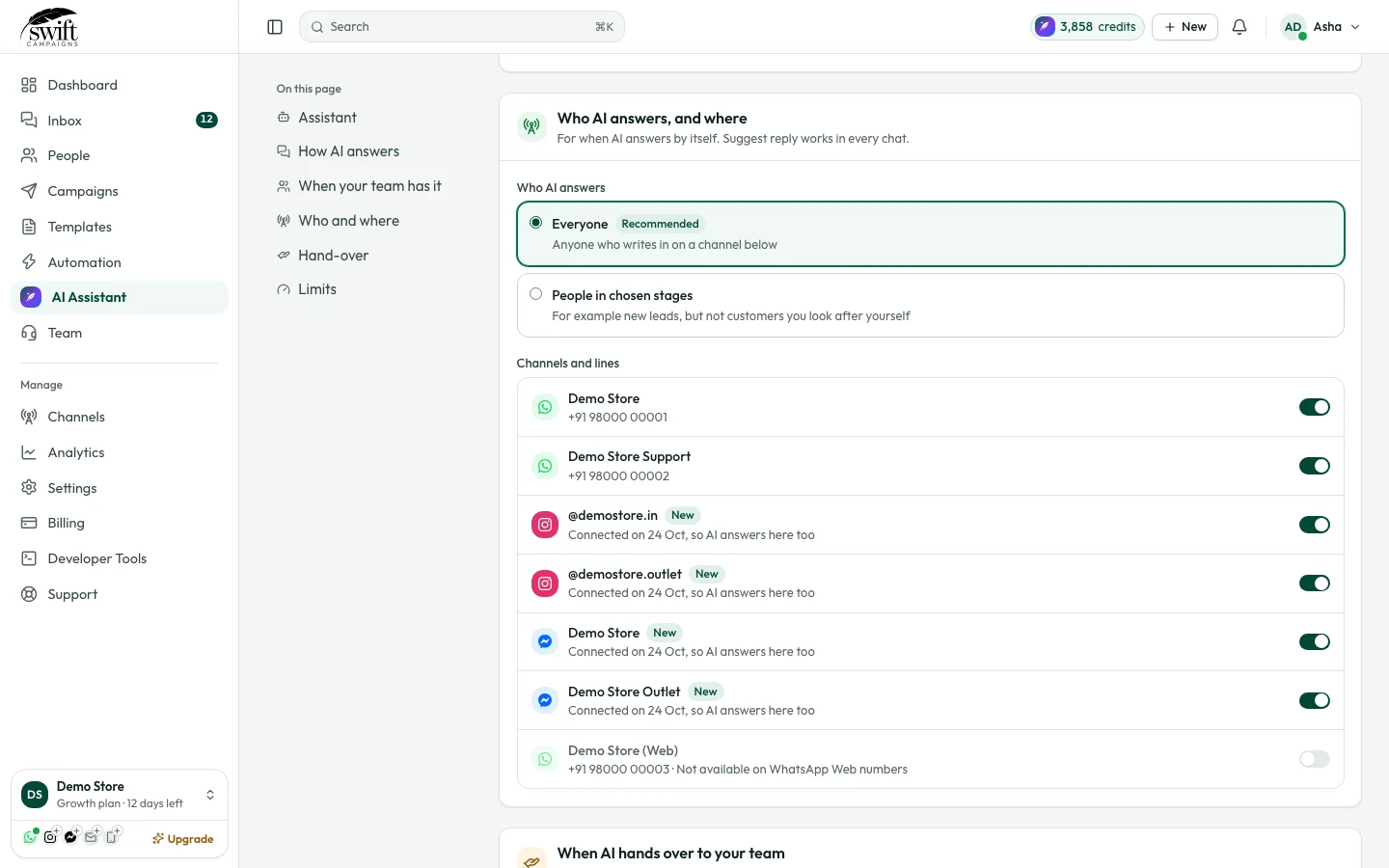
- 5
Choose when AI hands over
Under Always hand over when customers talk about, keep or remove topics such as Refunds and Complaints, or type your own and click Add. AI also hands over when it isn't sure, when asked for a person, or when two sources disagree. Open More: what AI tells the customer when it hands over to change those messages.
app.swiftcampaigns.com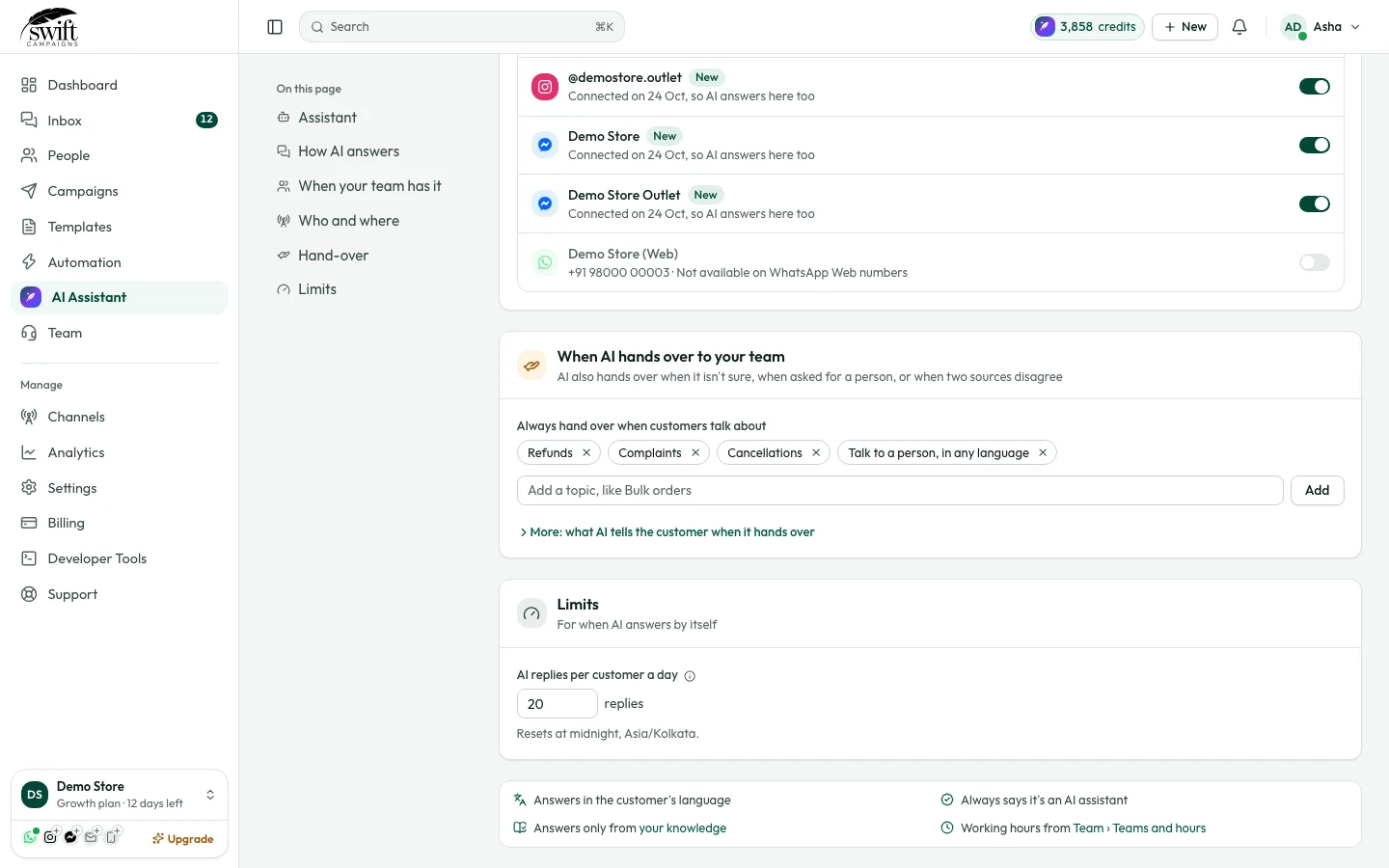
- 6
Set a daily limit
Under Limits, set AI replies per customer a day (20 to start). It resets at midnight in your time zone. AI's working hours come from Team › Teams and hours.