
Understand your numbers
Click any number to see the people, chats or messages behind it, and find out exactly what it counts.
Getting started5 steps·3 min read
- 1
Click a number
Numbers on the Dashboard, Analytics, a campaign's report, Team › Performance, Billing and your flows are links. Click one to open the list behind it, for example the people, chats or messages it counts. A zero has nothing to open.
app.swiftcampaigns.com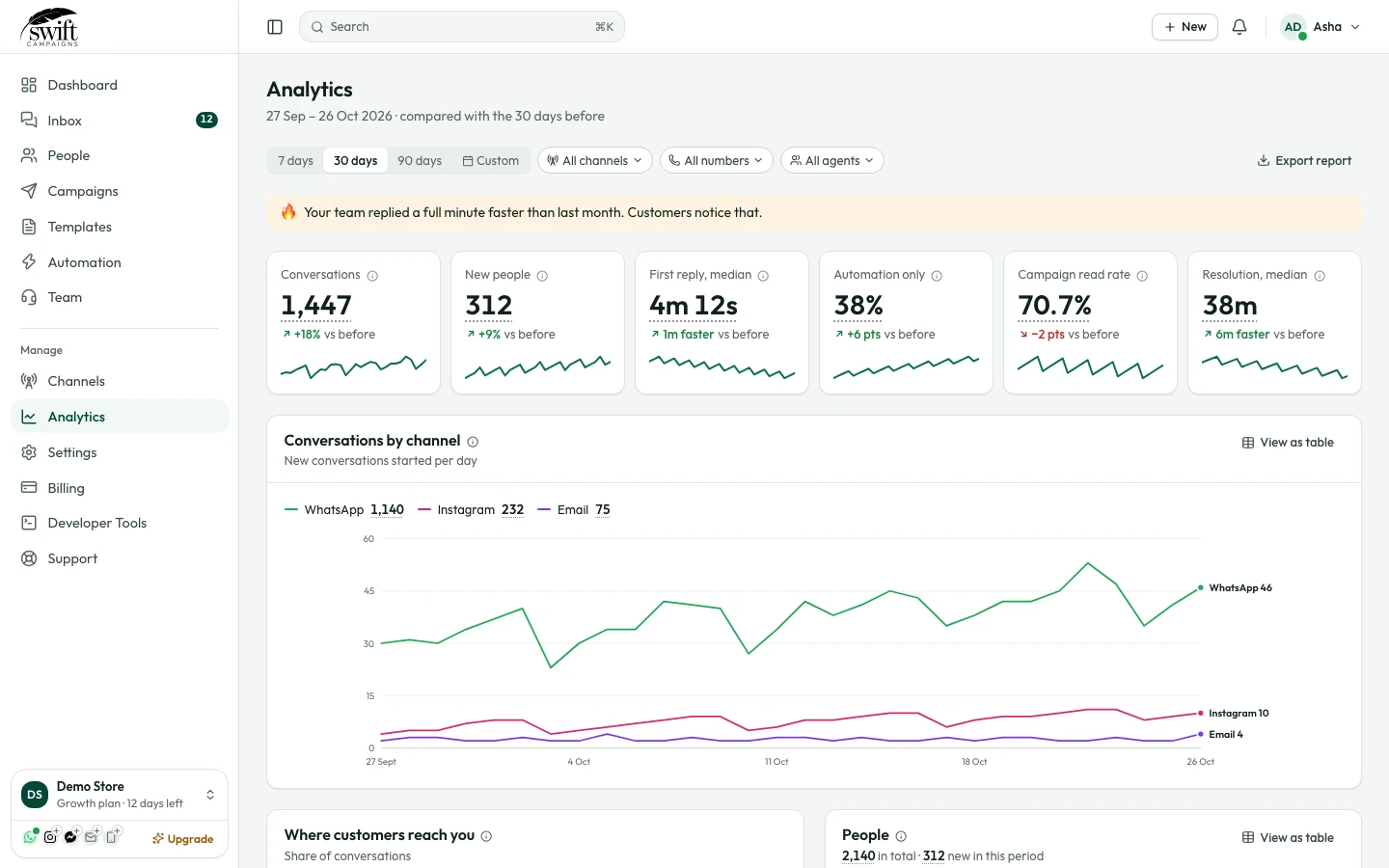
- 2
See why
Click the small i next to a label (Why this number?). It says what is counted, for which period, what is Not counted and when it was updated. The button at the bottom, such as See the 146 people, opens the list.
app.swiftcampaigns.com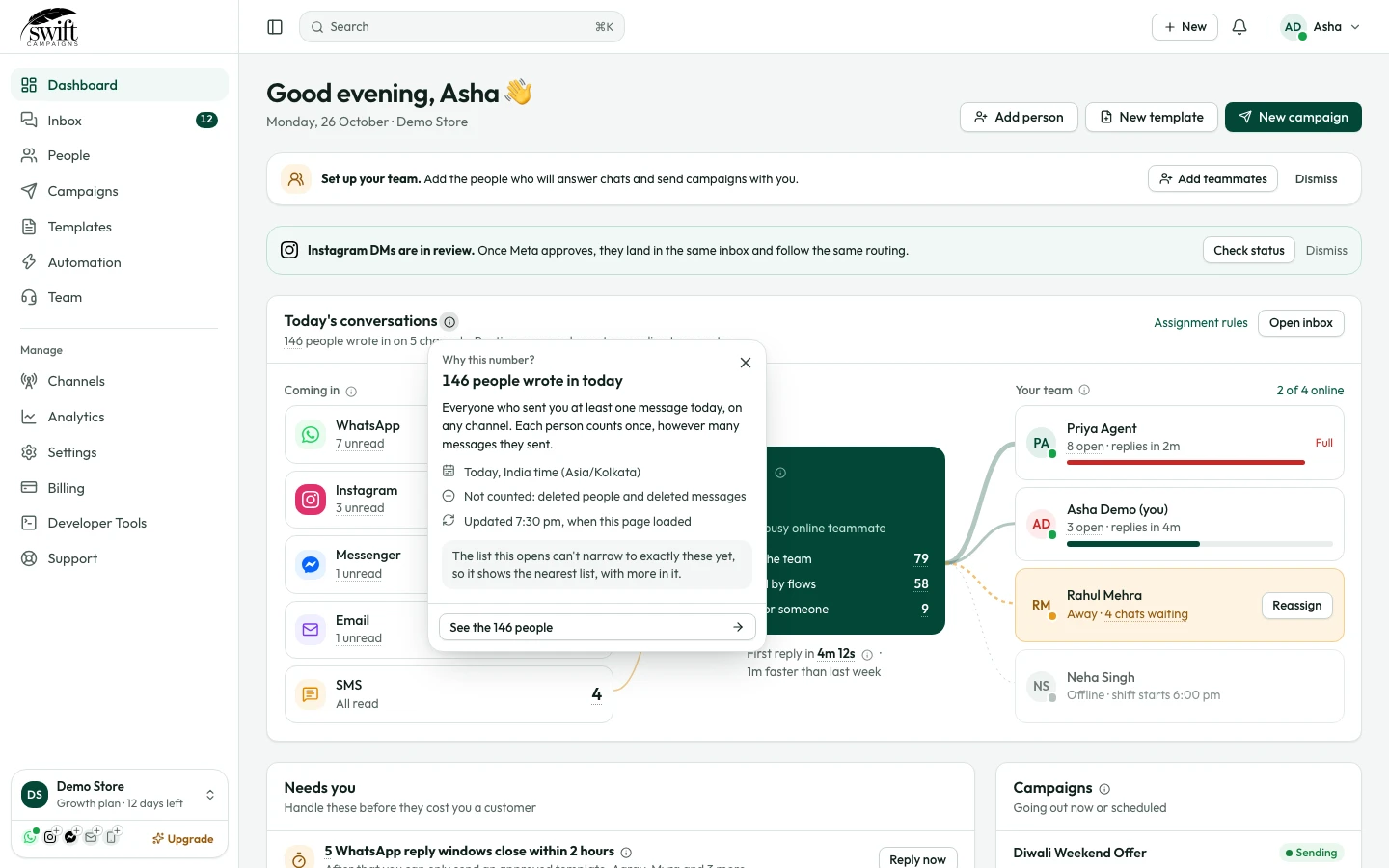
- 3
Read failed messages the right way
In Analytics, the share of failed messages is out of attempted: the messages we tried to send (sent plus failed). People we never tried to message don't change it.
- 4
Check your team
Go to Team › Performance. Click Chats solved, First reply, median, Time to solve, median or Reopened to see the chats behind them.
app.swiftcampaigns.com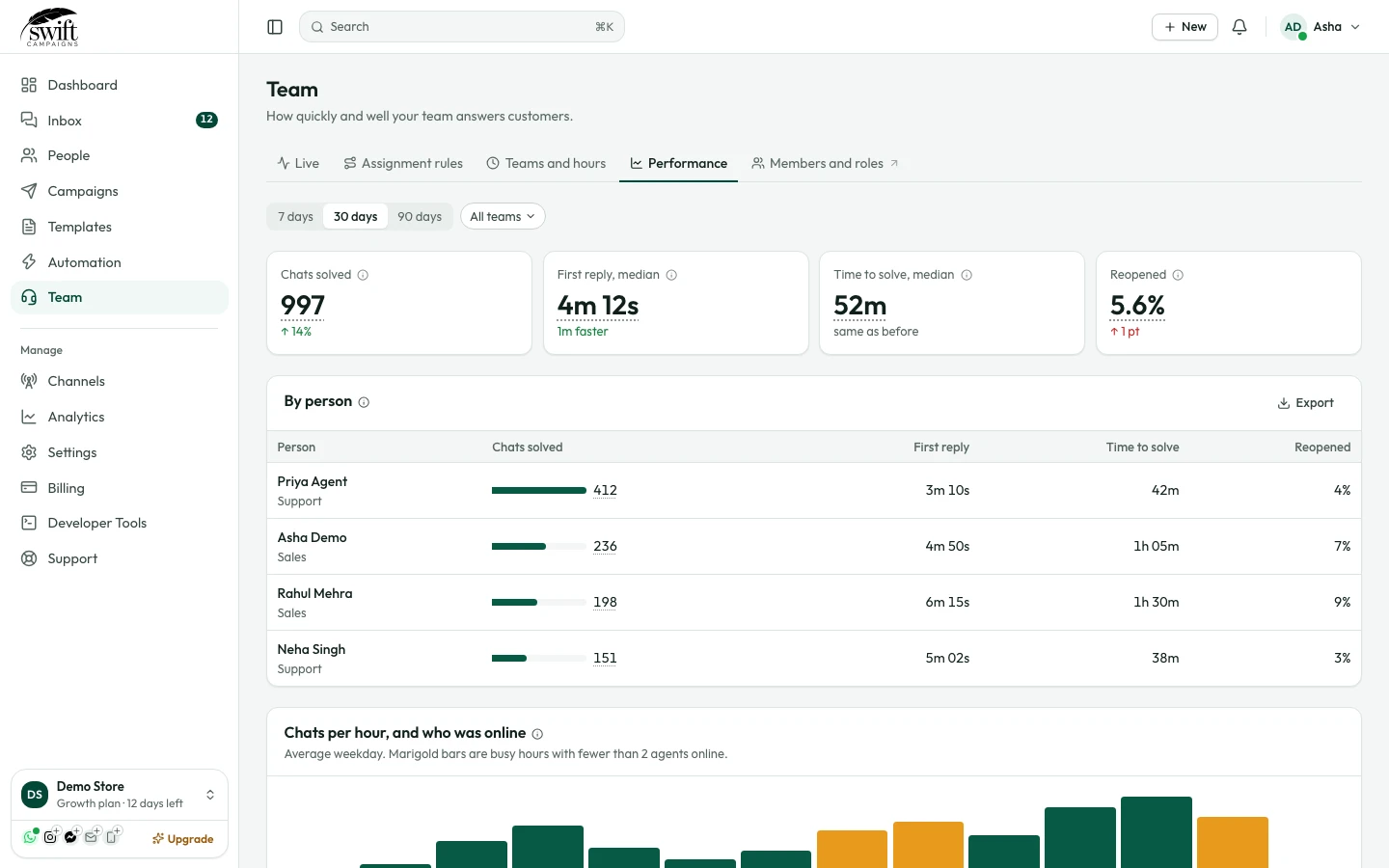
- 5
Check your usage and flows
On Billing, click a usage number such as People or Campaigns to open that list. On Automation › Flows, each flow shows its runs: every message the flow has sent counts as one run. Click the number to open the flow.
Good to know
- Some lists can't narrow to exactly the number yet. The why says so, and the list it opens is the nearest one, with a few more in it.
- The Messages count on Billing is not a link; its why shows plans with more messages.